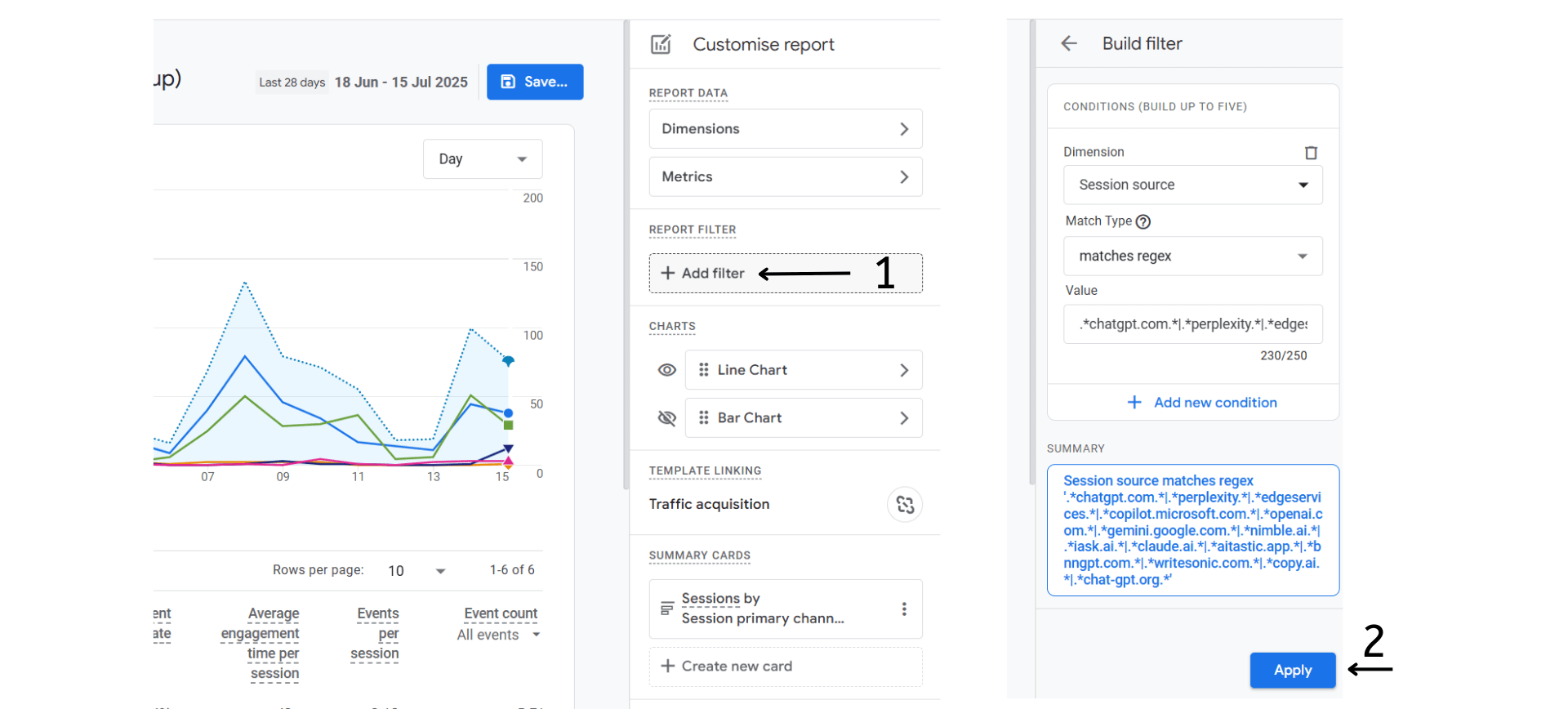

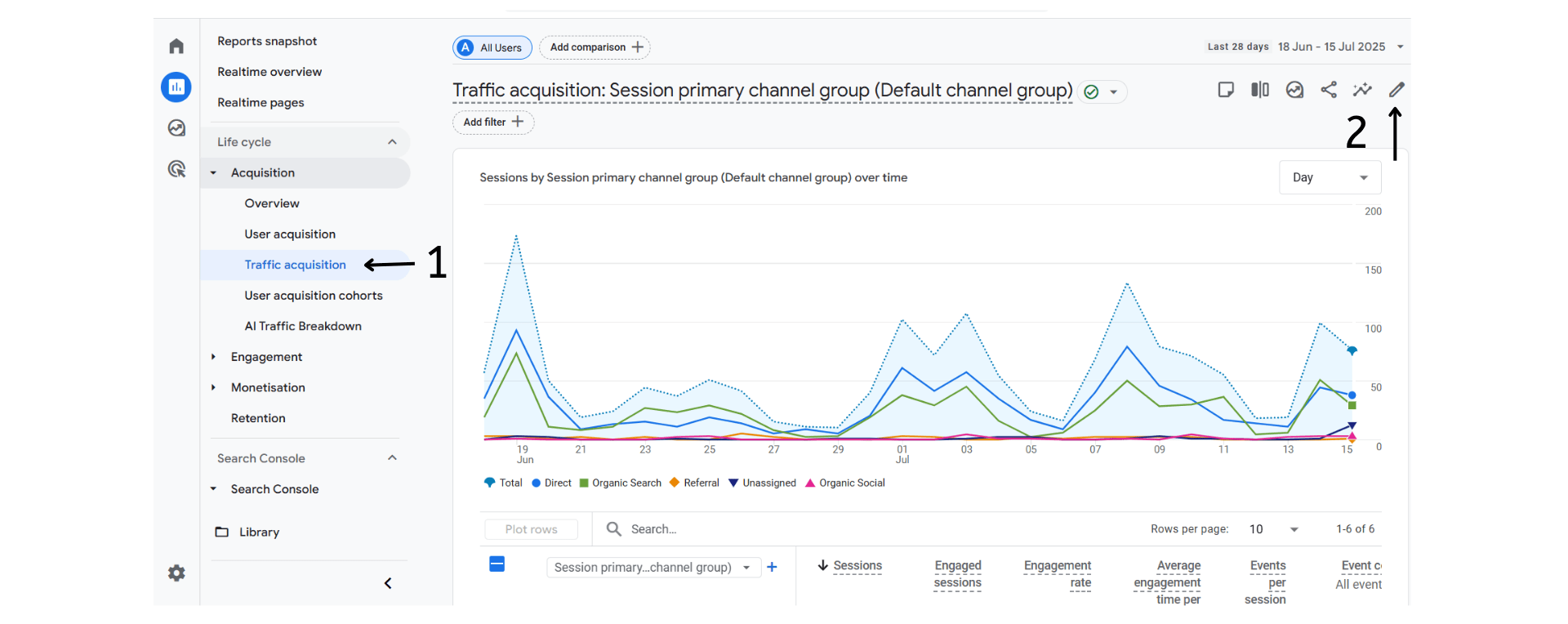
You've probably noticed some mysterious AI traffic in your GA4 reports. Want to know exactly where it's landing? In this blog we’ll show you how to build a simple AI Traffic report in Ga4 in less than 5 minutes. Step 1 To begin, in the left hand menu navigate through Life Cycle and Acquisition to get to Traffic Acquisition. Once your on this page, click the pencil in the top right corner to customise the report.
You've probably noticed some mysterious AI traffic in your GA4 reports. Want to know exactly where it's landing? In this blog we’ll show you how to build a simple AI Traffic report in Ga4 in less than 5 minutes.
Step 1
To begin, in the left hand menu navigate through Life Cycle and Acquisition to get to Traffic Acquisition. Once your on this page, click the pencil in the top right corner to customise the report.
Step 3
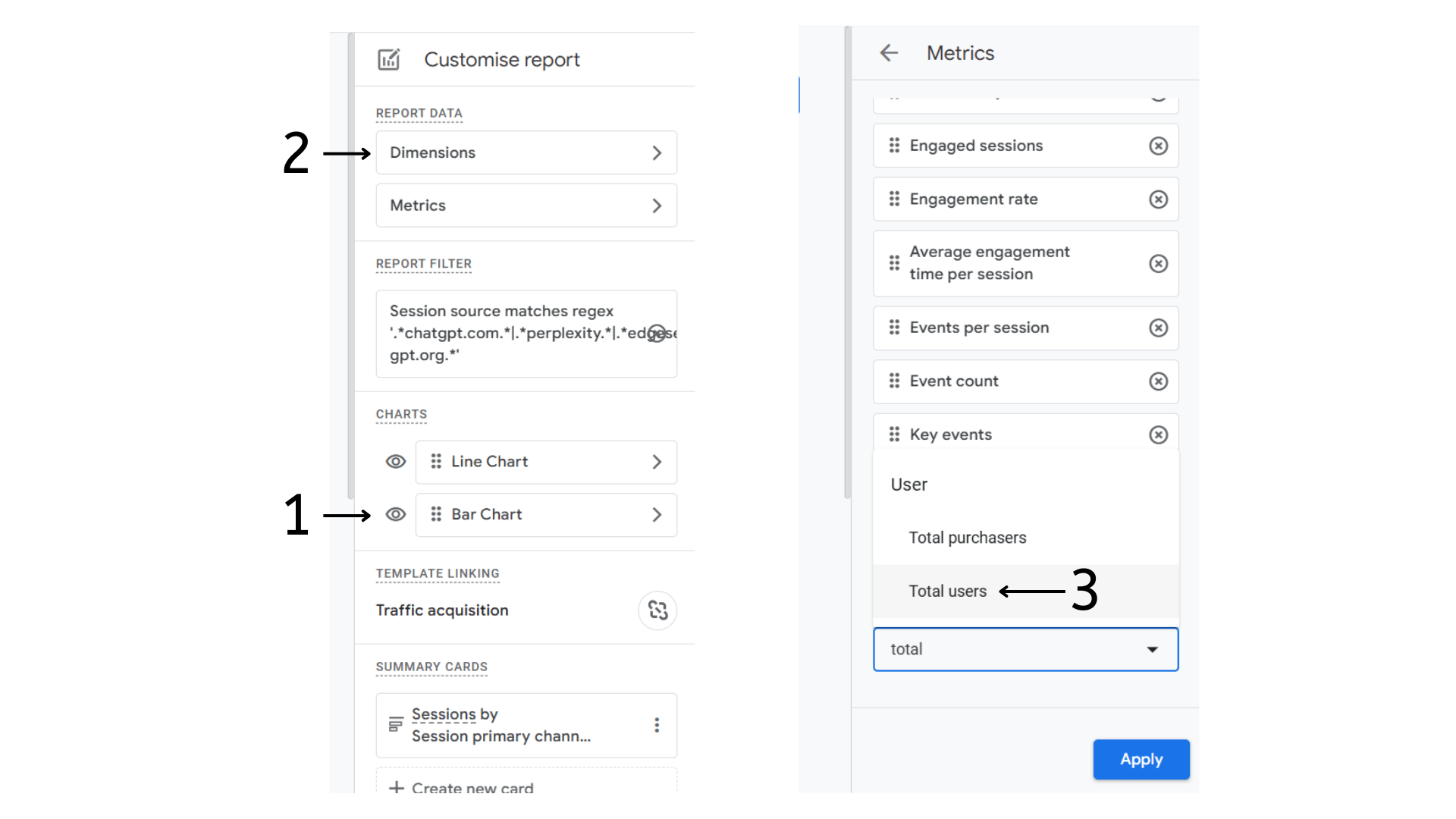
Next, click the eye icon next to "Bar Chart". This will include a bar chart in the report that displays the data in a readable way. Then click the "Metrics" tab and add the "total users" metric. Drag the total users tab up to the top, placing it just below "sessions" so it displays on the report.
Step 4
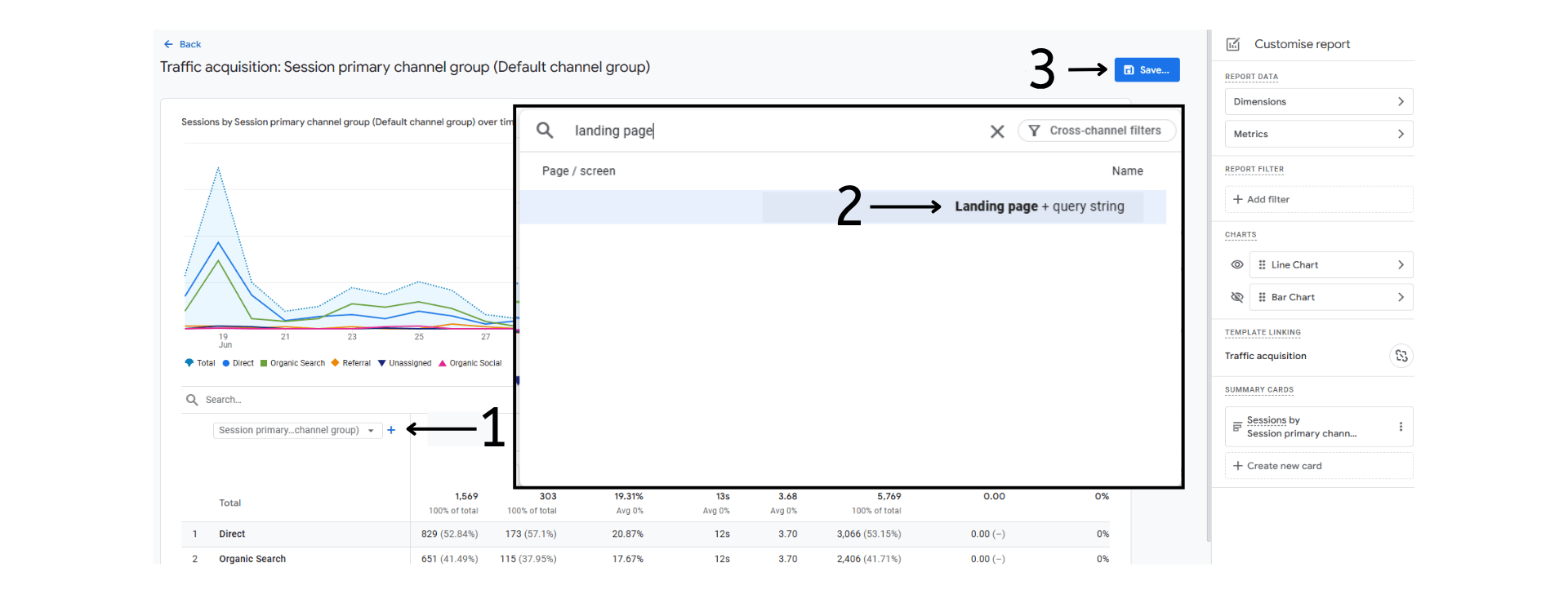
Now add a new dimension of "landing page + query string". This will mean you can see which pages users are landing on from AI sources. Next, save the report and add a name, something along the lines of "AI Traffic Aquisition" and then save "As a New Report".
Step 5
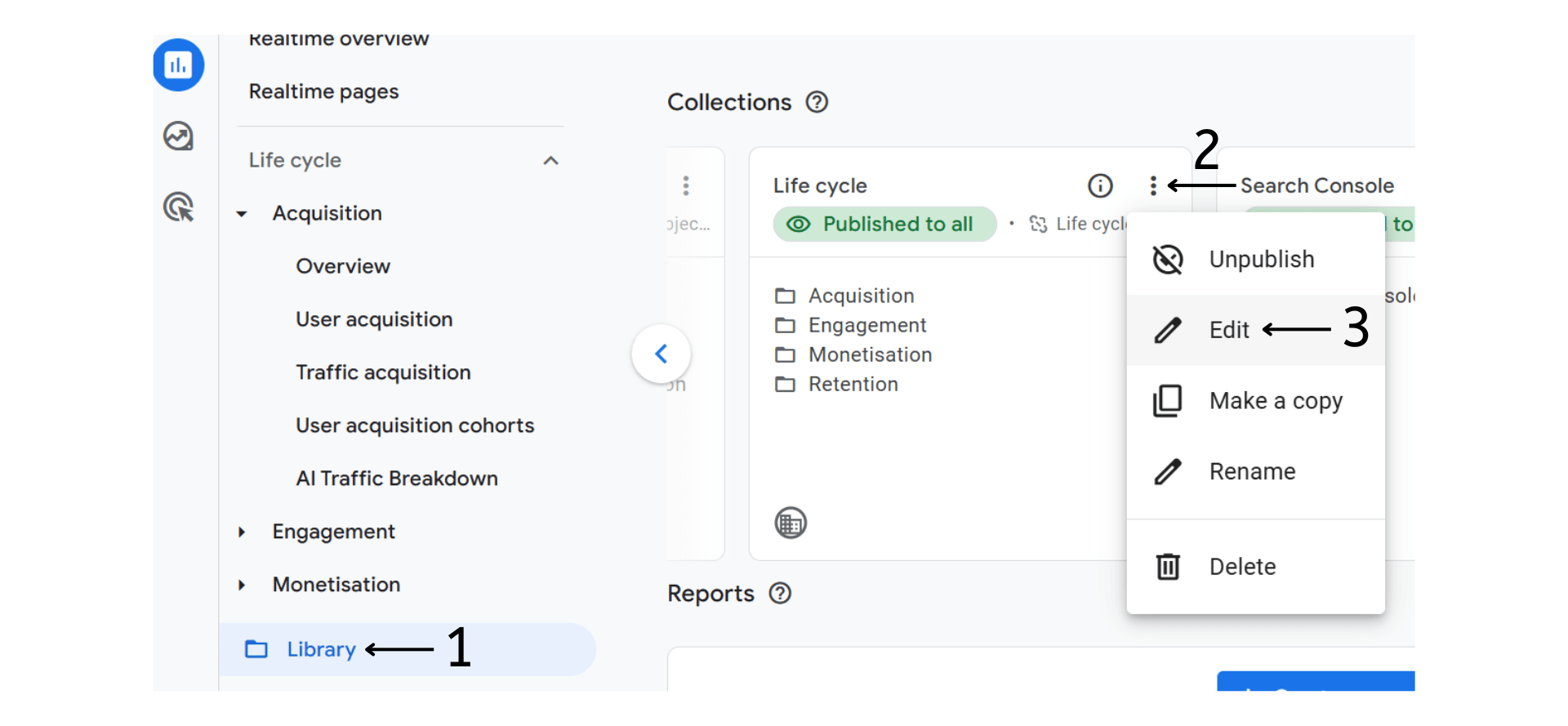
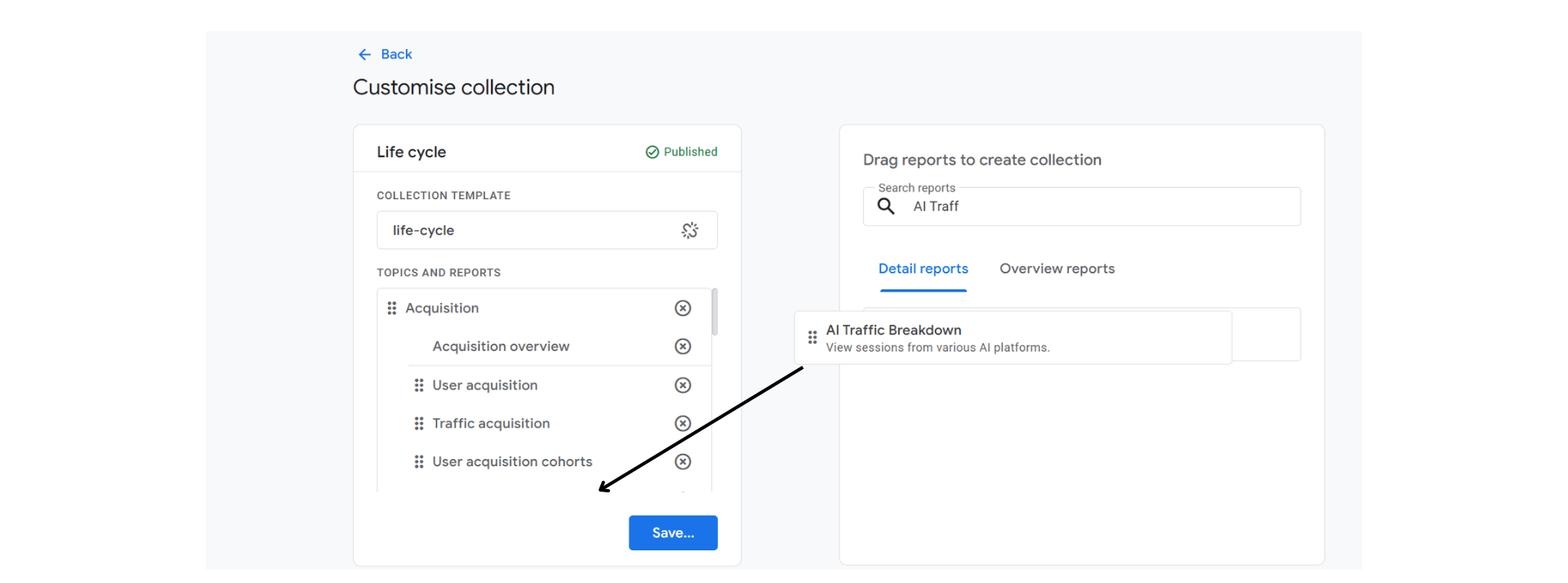
Now that the report is saved, we need to add it to the side panel so it's easily accessible. Navigate back to the Ga4 homepage and head to "Library". Find the life cycle section, click the three dots and then edit. Search for your report using the search bar and drag it to the left to be in the acquisition section.
Now save the changes and the report will now be viewable in the left hand side panel under the Acquisition dropdown.
Want more than just insights? AI traffic reports are only useful if your website performs. We build high-performing, secure websites that are built to convert.